Read the relevant manual chapter →
Rule matching and Global Routing
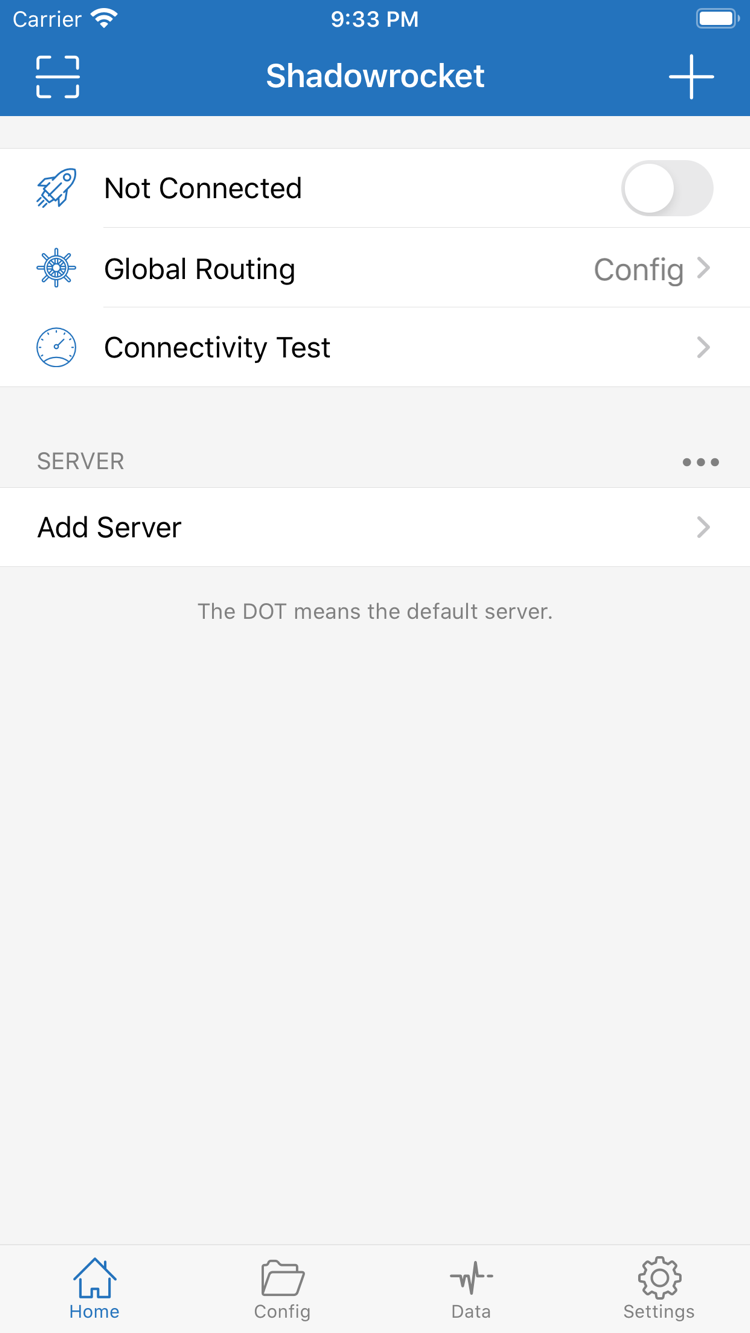
In Global Routing, the Config, Proxy and Direct options correspond to configuration-based routing, proxying and direct connections. For everyday rule-based routing, select Config and make sure the current configuration file is enabled. Rule checks requests from top to bottom and applies the first matching policy. Put specific domain rules before broader rules, and leave FINAL at the end. PROXY uses the selected proxy, DIRECT connects directly, and REJECT denies the request. The example below shows syntax only; it cannot replace your own server details or imply that every request should use the same policy.
DOMAIN-SUFFIX,example.com,PROXY
DOMAIN-KEYWORD,example,DIRECT
IP-CIDR,192.168.0.0/16,DIRECT
GEOIP,CN,DIRECT
FINAL,PROXY
Read the relevant manual chapter →
On Demand and manual connections
On Demand asks the system to establish a connection when specified conditions are met. It does not select which websites use a proxy; that is still determined by Global Routing and the active rules. For initial setup, start with the manual switch. Confirm that the server, DNS and rules work before setting network conditions as needed. If the connection starts again after you turn it off, check whether On Demand still has a matching condition instead of repeatedly deleting the server. Widget provides shortcuts, while iCloud syncs configurations. Keep a local copy before syncing, then check the selected server and configuration after switching devices.
Read the relevant manual chapter →
Add Server and protocol fields
If you already have details for an individual server, select Type in Add Server, then enter Host, Port and authentication fields for that type. Parameters differ between Shadowsocks, VMess, VLESS, Trojan, Hysteria2 and WireGuard; changing only Type while reusing all the old fields will not work. Use Scan QR Code for an existing QR code, then verify the protocol and address after importing. A successful save only means the entry was added to the list; it does not confirm remote reachability. Select the entry, run Connectivity Test, then verify it by opening a webpage.
- Shadowsocks
- VMess
- VLESS
- Trojan
- Hysteria2
- WireGuard
Read the relevant manual chapter →
Importing and updating with Subscribe
If you already have your own subscription link, use Subscribe to import the server list. Check that the link is complete before pasting it, without any explanatory text, spaces or line breaks. Updating a subscription usually reloads the remote list, so do not keep important local changes only in entries that may be overwritten. If an update fails, first check that the device can reach the subscription address, then confirm the link is still valid and the response uses a supported format. A subscription and a Config file serve different purposes: the former manages server entries, while the latter describes routing and other behavior. Check each one after importing.
Read the relevant manual chapter →
DNS resolution and connection results
DNS translates domain names into addresses needed for connections. If Connectivity Test succeeds but a webpage will not open, check name resolution separately from server reachability. First note the DNS settings in the current configuration and keep existing working values. Then determine whether all domains fail or only specific ones. Avoid changing the resolver, routing rules and protocol parameters at the same time, or it will be difficult to identify what caused the result. Configurations can override default behavior, so check the active configuration and app interface for current defaults. If your setup is stable, there is no need to replace all DNS settings just because a test result changed slightly.
Read the relevant manual chapter →
Connectivity Test and diagnostic records
Connectivity Test checks reachability using the current test method; it does not replace an actual browser test. Test Method in Settings affects the target and method, so keep them and the network consistent when comparing results. If the connection fails, check the local network first, then the server parameters, DNS and matching rules. Data can help you observe traffic changes during a connection, but traffic does not mean the destination page loaded successfully. If you need to review Log or Diagnostics, record only what is needed to reproduce the issue. Remove subscription links, server credentials and personal browsing records before sharing.